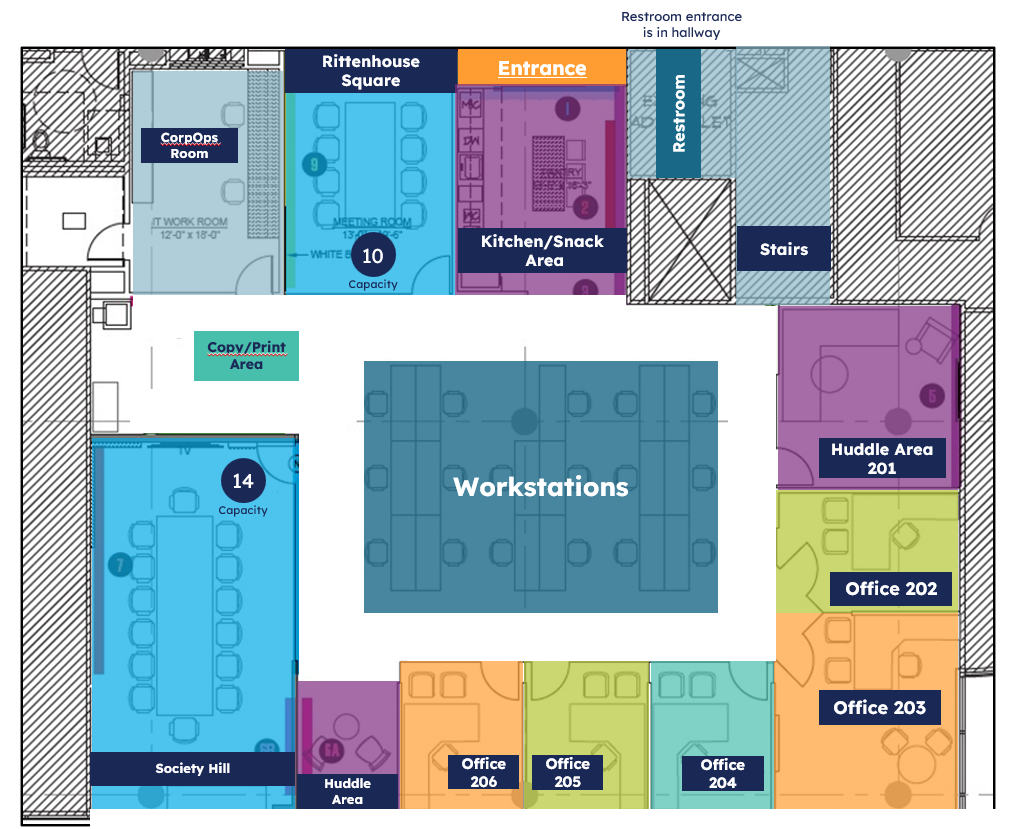
As a remote-first employer, no employees are required to work from the office – but if you choose to work from our Radnor location, you’re more than welcome! This space is available to employees, interns, and contractors who prefer or need an in-office environment from time to time.
To help you plan your visit, here’s what you’ll find below:
Each workstation (24 total; 17 standing) will be equipped with the following:
Keyboard, mouse, and a 27 or 34-inch monitors.
USBC docking station (this will work for Dell and HP laptops of any model)
USB and USBC charging outlets.
Note: Workstations are a first-come, first-served basis.
Reserving Offices/Conference Rooms
The following rooms are available for booking in Outlook.
Huddle Room 201 (6 seats)
Office 202 (3 seats)
Office 203 (5 seats)
Office 204 (3 seats)
Office 205 (3 seats)
Office 206(3 seats)
Rittenhouse Square (10 seats)
Society Hill (14 seats)
Click herefor a refresher on how to use the “Room Finder” feature in Outlook to book your conference room or office.
Connecting to WiFi and VPN
For reference, this process is essentially the same as working from your home
Cold start your computer (computer was fully powered off)
Log in with your Active Directory (AD, i.e., zsmith) password
The computer is configured to auto-connect to the emoneyguest network
If it does not connect automatically
Connect to the emoneyguest network with the password emoneypublic
Connect to VPN the same way you would connect from home
EMA VPN provides the best performance
Once connected to VPN, use OKTA to connect to eMoney resources
For help with connectivity or other IT-related issues, contact CorpOps
Note: Connecting to the wireless emoneyguest network using VPN is the preferred method for eMoney Office connectivity. If a “hard-wired” connection is required, contact CorpOps for assistance.